用iMessage建構家庭AI助理
- [數字工作與生活](https://raymondhouch.com/lifehacker/digital-workflow/)
# 用 iMessage 串接 Claude Code — 讓家人也能用 AI 助理
- [\\ 侯智薰 (雷蒙)](https://raymondhouch.com/author/admin/) - 發佈:2026-03-29 - 更新:2026-04-11
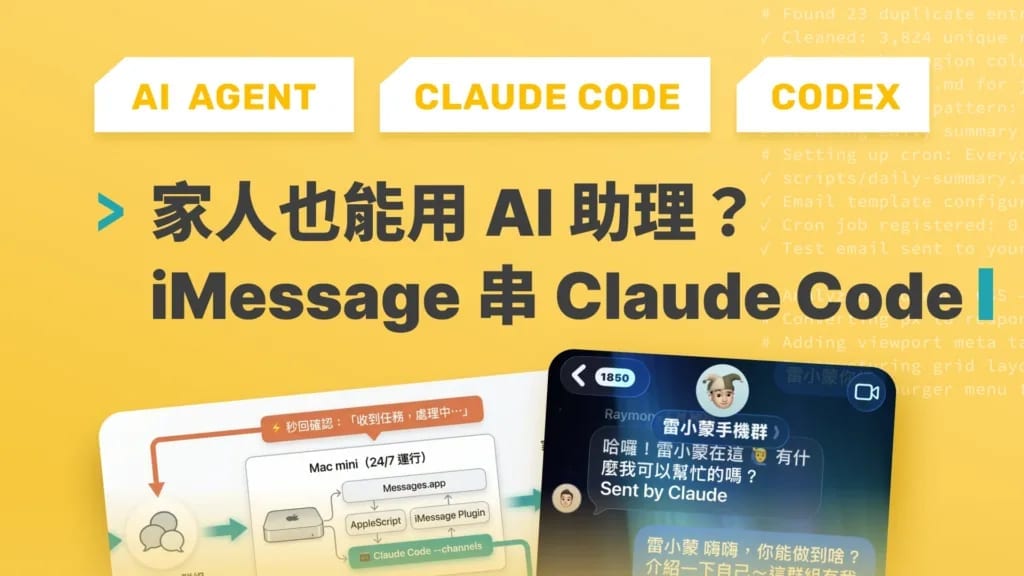
把 Claude Code 接上 iMessage 教學,讓家人在群組裡用觸發詞呼叫 AI 助理。不需要額外 App、不需要 Claude 帳號,完整設定流程、設計決策和踩坑紀錄。
#### 📌目錄
- [為什麼選 iMessage?](https://raymondhouch.com/lifehacker/digital-workflow/imessage-claude-code-ai-assistant/#elementor-toc__heading-anchor-0)
- [前提條件](https://raymondhouch.com/lifehacker/digital-workflow/imessage-claude-code-ai-assistant/#elementor-toc__heading-anchor-1)
- [Step 1:安裝 iMessage Plugin](https://raymondhouch.com/lifehacker/digital-workflow/imessage-claude-code-ai-assistant/#elementor-toc__heading-anchor-2)
- [Step 2:設定觸發規則](https://raymondhouch.com/lifehacker/digital-workflow/imessage-claude-code-ai-assistant/#elementor-toc__heading-anchor-3)
- [為什麼用群組而不是私訊?](https://raymondhouch.com/lifehacker/digital-workflow/imessage-claude-code-ai-assistant/#elementor-toc__heading-anchor-4)
- [為什麼需要 ackMessage?](https://raymondhouch.com/lifehacker/digital-workflow/imessage-claude-code-ai-assistant/#elementor-toc__heading-anchor-5)
- [怎麼找群組 ID?](https://raymondhouch.com/lifehacker/digital-workflow/imessage-claude-code-ai-assistant/#elementor-toc__heading-anchor-6)
- [Step 3:啟動](https://raymondhouch.com/lifehacker/digital-workflow/imessage-claude-code-ai-assistant/#elementor-toc__heading-anchor-7)
- [Step 4:讓它長期運行](https://raymondhouch.com/lifehacker/digital-workflow/imessage-claude-code-ai-assistant/#elementor-toc__heading-anchor-8)
- [踩坑紀錄(我踩過的你就不用踩了)](https://raymondhouch.com/lifehacker/digital-workflow/imessage-claude-code-ai-assistant/#elementor-toc__heading-anchor-9)
- [1\. –channels 是隱藏參數](https://raymondhouch.com/lifehacker/digital-workflow/imessage-claude-code-ai-assistant/#elementor-toc__heading-anchor-10)
- [2\. Messages.app 有 3800+ 聊天記錄時會逾時](https://raymondhouch.com/lifehacker/digital-workflow/imessage-claude-code-ai-assistant/#elementor-toc__heading-anchor-11)
- [3\. 群組內自己的訊息不會觸發](https://raymondhouch.com/lifehacker/digital-workflow/imessage-claude-code-ai-assistant/#elementor-toc__heading-anchor-12)
- [4\. 所有回覆都從你的 Apple ID 發出](https://raymondhouch.com/lifehacker/digital-workflow/imessage-claude-code-ai-assistant/#elementor-toc__heading-anchor-13)
- [5\. Watermark 機制:啟動前的訊息不會處理](https://raymondhouch.com/lifehacker/digital-workflow/imessage-claude-code-ai-assistant/#elementor-toc__heading-anchor-14)
- [6\. SSH 環境無法直接啟動](https://raymondhouch.com/lifehacker/digital-workflow/imessage-claude-code-ai-assistant/#elementor-toc__heading-anchor-15)
- [意外收穫:Discord Bot 也跟著進化](https://raymondhouch.com/lifehacker/digital-workflow/imessage-claude-code-ai-assistant/#elementor-toc__heading-anchor-16)
- [實際使用場景](https://raymondhouch.com/lifehacker/digital-workflow/imessage-claude-code-ai-assistant/#elementor-toc__heading-anchor-17)
- [限制和注意事項](https://raymondhouch.com/lifehacker/digital-workflow/imessage-claude-code-ai-assistant/#elementor-toc__heading-anchor-18)
- [小結](https://raymondhouch.com/lifehacker/digital-workflow/imessage-claude-code-ai-assistant/#elementor-toc__heading-anchor-19)
-  侯智薰 (雷蒙) - 發佈:2026-03-29 - 更新:2026-04-11
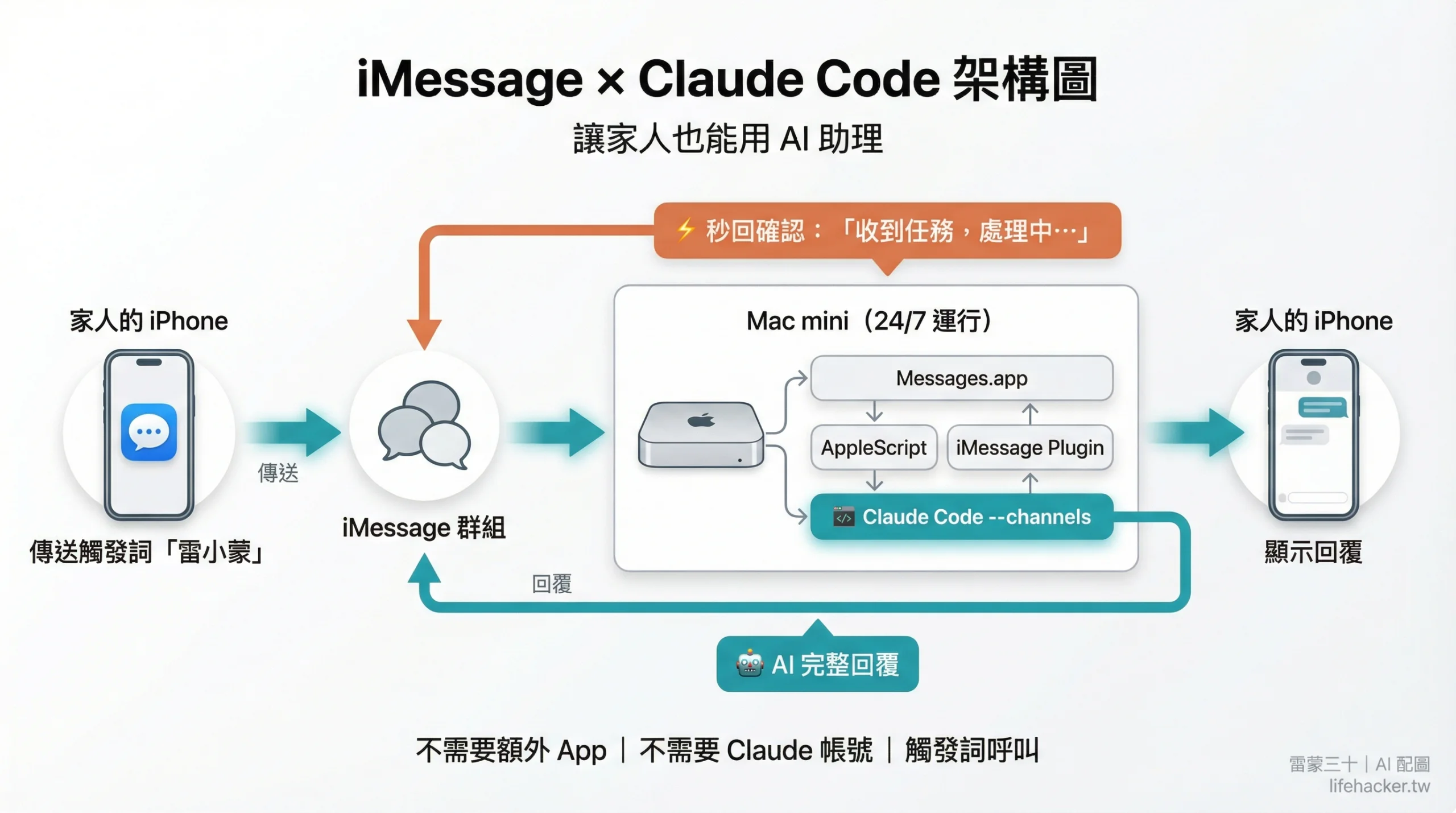
把 Claude Code 接上 iMessage,讓你和家人在群組裡用「觸發詞」呼叫 AI 助理。 **不需要額外 App,不需要對方有 Claude 帳號,在 iMessage 裡 @雷小蒙(我的 AI 分身) 就能對話**。
本來覺得這種比較進階的文章未來再發,但前幾天把這個成果丟到 [Threads](https://www.threads.com/@raymond0917/post/DWWvxFrmEql) 上,兩天就超過 7,000 次瀏覽,蠻多人問怎麼做的,所以乾脆整理成完整教學。
我花了一個晚上搞定,跨了四個 session,踩了至少七個坑。
這篇把完整流程、設計決策和所有踩坑一次寫清楚。
[](https://raymondhouch.com/wp-content/uploads/2026/03/imessage-claude-code-architecture-1-scaled.jpg)
* * *
## 為什麼選 iMessage?
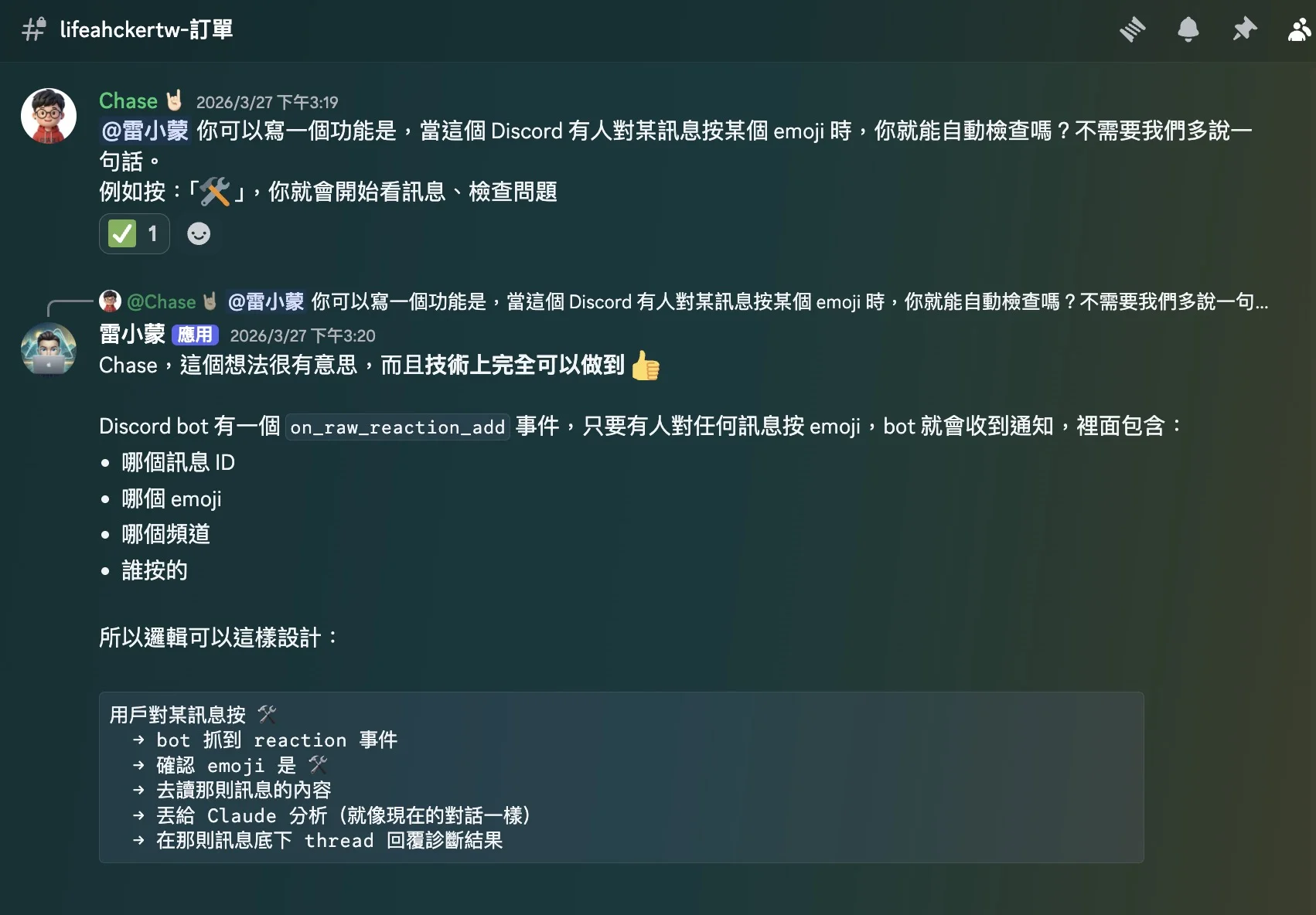
[Discord Bot](https://raymondhouch.com/lifehacker/digital-workflow/discordbot-bookmark/) 已經很好用了,在團隊伺服器裡,成員可以直接 @雷小蒙 問問題、查資料,它會自動回覆。
[](https://raymondhouch.com/wp-content/uploads/2026/03/discord-bot-team-server-1.jpg)
但有一個場景它搞不定: **家人不在 Discord 上**。
我太太日常用 iMessage 跟我聊天,她不可能為了問 AI 一個問題去開 Discord。如果我能把 Claude 接到 iMessage 群組裡,她只要在群組打「雷小蒙,幫我查一下⋯⋯」就好了。
而且做完這個之後,我從 iMessage plugin 的 persistent session 架構學到了東西,回頭把 Discord Bot 從 V0(每次訊息開新 subprocess,25% cache)推到 V2(persistent session,84% cache)。一個專案帶動另一個專案,這就是為什麼我喜歡折騰。
* * *
## 前提條件
- **Mac 電腦**(iMessage 只有 Apple 平台能跑 AppleScript) - **[Claude Code](https://raymondhouch.com/lifehacker/digital-workflow/claude-code-tutorial/) Max 訂閱**(需要 `--channels` 功能) - **Mac 上登入了 Messages.app**,且聯絡人有 iMessage
我是用 24 小時運行的 Mac mini 當主機,這樣即使我不在電腦前,家人傳訊息也會有回應。
* * *
## Step 1:安裝 iMessage Plugin
[Claude Code](https://raymondhouch.com/lifehacker/digital-workflow/claude-code-tutorial/) 有一個官方的 iMessage plugin,但它有點隱藏——不在 marketplace 首頁,需要手動啟用。
```bash # 確認 plugin 已安裝(在 Claude Code 裡執行) claude plugin list # 應該看到 imessage@claude-plugins-official ```
如果沒有,在 Claude Code settings 裡啟用 `imessage@claude-plugins-official`。
* * *
## Step 2:設定觸發規則
建立設定檔 `~/.claude/channels/imessage/access.json`:
```json { "dmPolicy": "allowlist", "allowFrom": [], "groups": [\ {\ "chatId": "any;+;你的群組ID",\ "requireMention": true,\ "mentionPatterns": ["雷小蒙"]\ }\ ], "ackMessage": "收到任務,處理中⋯" } ```
**關鍵設定解釋:**
- `dmPolicy: allowlist` \+ 空 `allowFrom`:不回應任何私訊(安全考量) - `groups`:只在指定群組裡回應 - `requireMention: true`:必須提到觸發詞才會回應,不是所有訊息都觸發 - `mentionPatterns`:觸發詞,可以設多個 - `ackMessage`:收到觸發後的即時確認(讓對方知道 AI 在處理了)
### 為什麼用群組而不是私訊?
這是我踩到的第一個設計坑。
最初的想法很單純:讓太太直接私訊我的 iMessage,Claude 自動回覆。但問題是—— **iMessage 沒有獨立的 Bot 帳號**。Claude 是直接用你的 Apple ID 發訊息。
如果你把太太加進 DM allowlist,Claude 會回覆她傳給你的 **所有** 私訊。你們聊「晚餐吃什麼」Claude 也會跳出來回答。
所以正確做法是: **建一個專用群組 \+ 觸發詞**。平常聊天走私訊,要問 AI 就去群組喊「雷小蒙」。各走各的,不互相干擾。
### 為什麼需要 ackMessage?
Discord Bot 收到訊息可以先按一個 emoji reaction(👀),讓你知道它看到了。但 iMessage 的 Tapback(按讚、愛心)是 Apple 私有 API,AppleScript 完全無法操作。
所以我設計了 `ackMessage`——Claude 收到觸發詞後,先秒回一句「收到任務,處理中⋯」,然後才去處理。這樣對方不會以為訊息石沉大海。一行設定,體驗差很多。
### 怎麼找群組 ID?
打開 Messages.app → 選中目標群組 → 在 Claude Code 啟動 iMessage plugin 後,debug log 裡會看到 `chat_identifier`。格式通常是 `any;+;一串 hash`。
* * *
## Step 3:啟動
```bash claude --channels plugin:imessage@claude-plugins-official \ --allowedTools "mcp__plugin_imessage_imessage__reply,mcp__plugin_imessage_imessage__chat_messages" ```
**必須帶的參數:**
- `--channels plugin:imessage@claude-plugins-official`:啟動 iMessage 通道 - `--allowedTools`:預授權 reply 和讀訊息的工具(非互動 session 不會跳授權對話框)
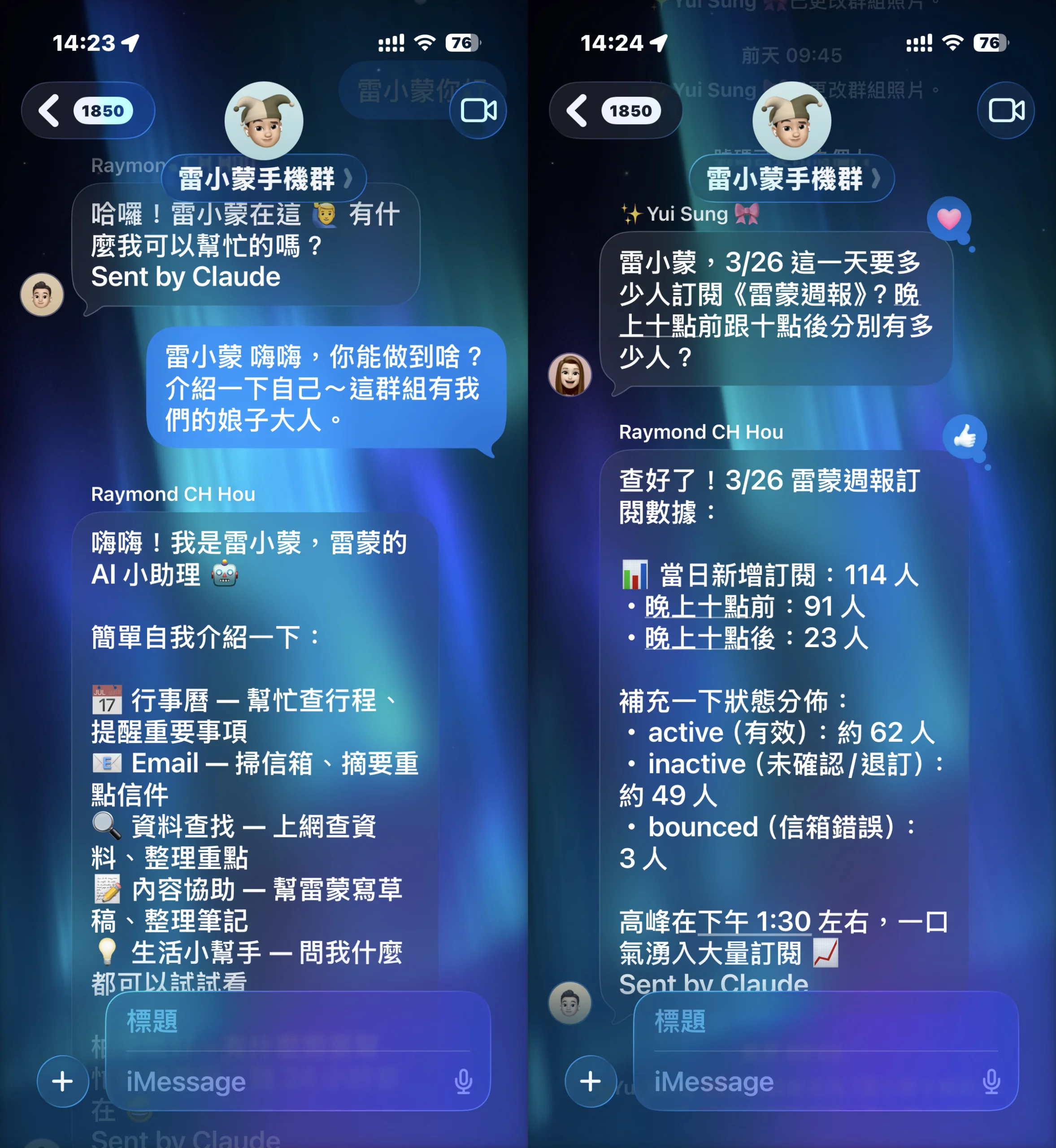
啟動成功後,在群組裡打「雷小蒙,今天天氣怎樣?」,應該會先收到「收到任務,處理中⋯」,然後收到 AI 回覆。
實際跑起來長這樣——左邊是我讓雷小蒙自我介紹,右邊是太太直接問訂閱數據,它查完直接回報:
[](https://raymondhouch.com/wp-content/uploads/2026/03/imessage-claude-code-demo-1-scaled.jpg)
* * *
## Step 4:讓它長期運行
如果你有一台 24 小時開機的 Mac(像我的 Mac mini),可以寫一個啟動腳本:
```bash #!/bin/bash # start-claude-imessage.sh # 進入專案目錄(讓 Claude 有完整的 CLAUDE.md context) cd ~/Library/Mobile\ Documents/iCloud~md~obsidian/Documents/Raymond-Agent # 啟動(帶 debug log 方便排錯) claude --channels plugin:imessage@claude-plugins-official \ --allowedTools "mcp__plugin_imessage_imessage__reply,mcp__plugin_imessage_imessage__chat_messages" \ --debug-file /tmp/claude-imessage-debug.log ```
重啟方法(如果 session 斷了):
```bash # 從 SSH 遠端重啟(需要 GUI context 才能存取 Messages.app) ssh mini 'osascript -e "tell application \"Terminal\" to do script \"bash ~/start-claude-imessage.sh\""' ```
* * *
## 踩坑紀錄(我踩過的你就不用踩了)
### 1\. –channels 是隱藏參數
`claude --help` 裡面看不到這個 flag。格式必須是 `plugin:<name>@<marketplac